
The Ultimate Guide to MAVSDK-Python Programming [Part 12]: Troubleshooting Guide and Logging Techniques
Hello once again, university students and researchers dedicating yourselves to autonomous flight robotics and drone control algorithms! Welcome to the twelfth installment of QUAD Drone Lab’s MAVSDK-Python blog series.
Up until now, we have systematically mastered the core and flashy features required to implement autonomous flight—ranging from precise position/velocity control via OFFBOARD mode to manual piloting using keyboard inputs. You must have felt an indescribable thrill watching the drone in the simulator draw perfect trajectories exactly according to your code.
However, in a real research environment or a graduate lab, things rarely run smoothly on the first try. You will constantly hit walls like, “It definitely flew perfectly yesterday, so why isn’t it connecting today?” or “My code is flawless, so why is the drone ignoring my takeoff command?” In autonomous flight research, ‘the debugging ability to swiftly and accurately track down and resolve issues’ is just as crucial as writing the algorithms themselves.
Therefore, in this [Part 12: Troubleshooting Guide and Logging Techniques], we will analyze the causes of the most frequently encountered errors when using MAVSDK-Python. We will also kindly and thoroughly explain advanced debugging techniques that allow you to look into the system’s internal states transparently—like an X-ray—using Python’s logging module and running the MAVSDK server independently.
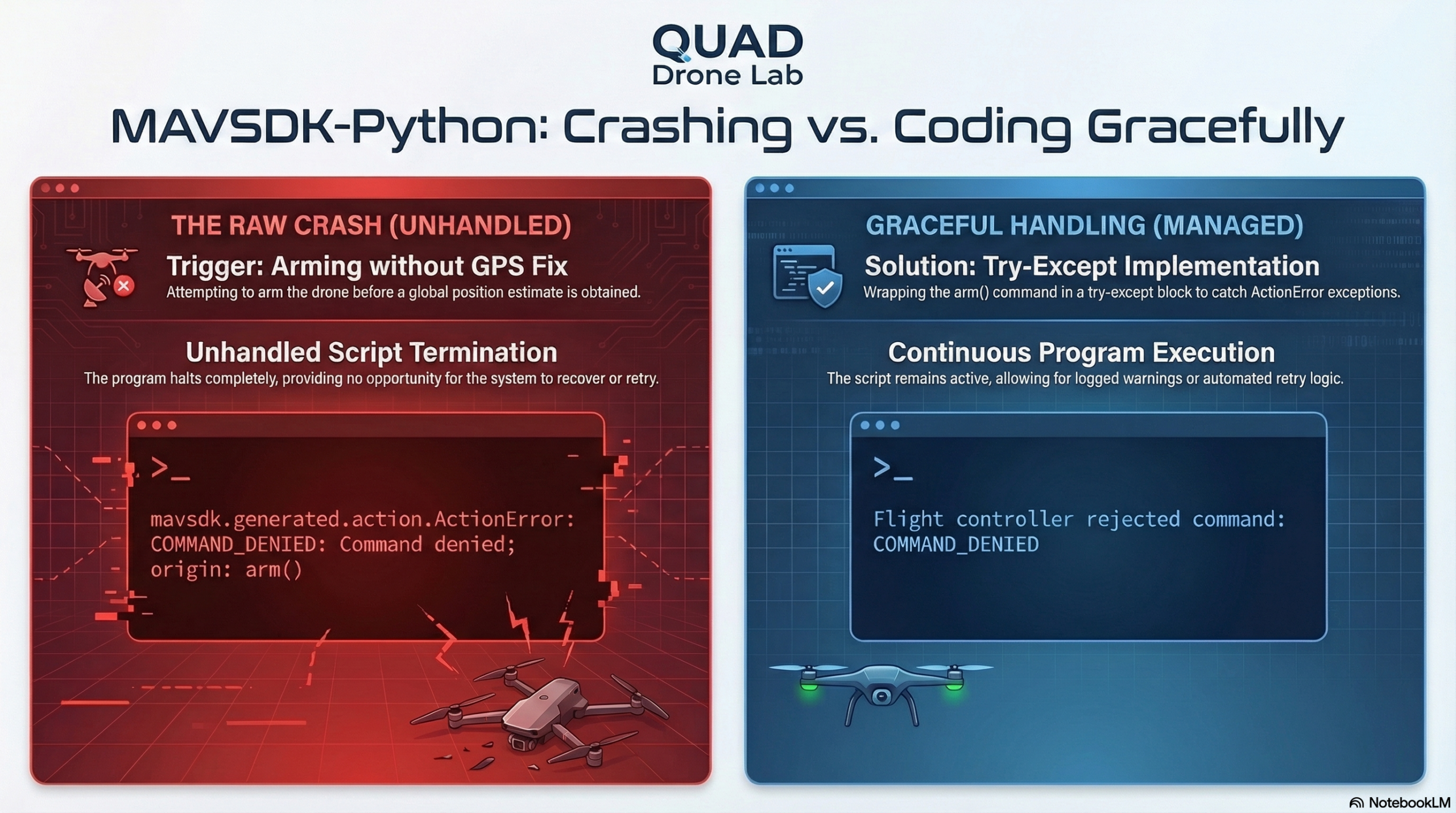
1. The Truth Behind the COMMAND_DENIED Error and try...except Handling
The most panic-inducing moment for researchers just starting with MAVSDK programming is when the program crashes and spits out a red error message. The most notorious of these is the ActionError: COMMAND_DENIED.
# Example Error Message
raise ActionError(result, "arm()")
mavsdk.generated.action.ActionError: COMMAND_DENIED: 'Command denied'; origin: arm(); params: ()
Just because this exception occurs does not mean there is a syntax bug in your MAVSDK code. This message means that the PX4 Flight Controller (FC) has explicitly rejected your command for safety reasons.
The most common culprit is attempting to Arm the motors before a Global Position (GPS Fix) has been secured. It takes time for an actual drone or the simulator (SITL) to initialize and stably receive GPS signals. If your Python script blindly throws an arm() command the moment it executes, the flight controller will firmly reject it to ensure safety.
Therefore, to prevent your program from crashing abruptly, you must make it a habit to wrap most MAVSDK-Python control function calls in a try… except block to handle exceptions gracefully.
[Safe Takeoff Code Example with Exception Handling]
import asyncio
from mavsdk import System
from mavsdk.action import ActionError

async def safe_takeoff():
    drone = System()
    await drone.connect(system_address="udp://:14540")

    print("Waiting for GPS signal...")
    async for health in drone.telemetry.health():
        if health.is_global_position_ok and health.is_home_position_ok:
            print("-- GPS signal secured!")
            break

    # Safely dispatching commands using try...except
    try:
        print("-- Attempting to Arm motors")
        await drone.action.arm()
        print("-- Attempting to Takeoff")
        await drone.action.takeoff()
    except ActionError as e:
        # If the command is denied, the program doesn't crash but prints the cause
        print(f"The Flight Controller rejected the command: {e}")
        # Add necessary emergency failsafe logic here (e.g., retry, notify admin)

asyncio.run(safe_takeoff())
2. In-Depth Debugging Using Python’s logging Module
Sometimes it isn’t just a simple command rejection; the communication itself might drop, or you might have no idea what is happening inside the system. MAVSDK-Python has a built-in feature that automatically captures and displays important messages generated by the underlying mavsdk_server running in the background.
By default, only Error and Warning messages are shown. However, by utilizing Python’s built-in logging module, you can pull up and inspect all Information (Info) and deep Debug messages.
① Basic Communication Debugging (INFO Level)
If you want to check the connection attempts with the drone, basic version information, or the overall operational status of the mavsdk_server during your research, set the logging level to INFO.
import logging
import asyncio
from mavsdk import System

# Set the logging level to INFO to output basic connection states and server info
logging.basicConfig(level=logging.INFO)

async def run():
    drone = System()
    await drone.connect(system_address="udp://:14540")
    # ... omitted ...
Running this code will output not just simple errors, but a detailed breakdown of the background server starting up and whether the system was successfully discovered.
② Bone-Deep Detailed Debugging (DEBUG Level)
If you are in a complex situation where you need to verify the data packets going back and forth internally, or core engine debug info that is hard to understand unless you are a developer, lower the level to DEBUG.
import logging
# Outputs all debug information including internal component actions and message tx/rx logs
logging.basicConfig(level=logging.DEBUG)
At this level, a massive amount of logs will pour onto your screen, making it incredibly useful for tracking down unresolved communication protocol issues.
③ Server Message Filtering Techniques
When you want to hide the logs printed by your Python code and only see the mavsdk_server‘s operational status, or conversely, if you want to turn off the server logs completely, you can fetch the specific logger and adjust its level.
import logging

# Restrict overall logging to WARNING and above to keep the terminal clean
logging.basicConfig(level=logging.WARNING)

# Selectively display ONLY the INFO messages coming from 'mavsdk_server'
logging.getLogger('mavsdk_server').setLevel(logging.INFO)

# If you want to completely hide the server output, set it to CRITICAL like below
# logging.getLogger('mavsdk_server').setLevel(logging.CRITICAL)
3. Connection Errors and Running mavsdk_server Independently
When running MAVSDK code, you might encounter terrifying errors like ERROR:mavsdk_server:Unknown protocol or Connection failed: Invalid connection URL. These usually occur when the format of your Connection String (e.g., udpin://0.0.0.0:14540) is incorrect.
To intuitively resolve these connection issues, we need to understand a bit about MAVSDK’s architecture. When you call await drone.connect() in your Python script, a C++ based binary file called mavsdk_server (formerly known as the backend) embedded in the package automatically runs in the background to relay communications.
If the connection drops immediately for unknown reasons every time you run your Python script, the best debugging method is to bypass Python and run this mavsdk_server binary file independently to verify the raw server logs.
If you installed via pip3 install --upgrade mavsdk in a Linux (Ubuntu) environment, the server executable is typically located at ~/.local/lib/python3.10/site-packages/mavsdk/bin/ (path may vary depending on your Python version).
Open a new terminal and run the server entirely on its own as shown below:
# Manually run the MAVSDK server binary and input the target address
~/.local/lib/python3.10/site-packages/mavsdk/bin/mavsdk_server udpin://0.0.0.0:14540
When the server runs, it will output a log indicating that it has opened the port and is waiting for a vehicle.
[02:36:31 | Info ] MAVSDK version: v1.4.16
[02:36:31 | Info ] Waiting to discover system on udpin://0.0.0.0:14540...
If you turn on the PX4 Simulator (SITL) in this state, you will be greeted with a welcoming message that the server has detected a new Autopilot system and is listening on port 50051.
[02:39:01 | Info ] New system on: 127.0.0.1:14580 (with sysid: 1)
[02:39:02 | Info ] Server started
[02:39:02 | Info ] Server set to listen on 0.0.0.0:50051
Once you have confirmed that the server is running independently and stably, you can leave the address parameter empty in your Python code and simply call await drone.connect() to instantly connect to this already-running server.
4. Pro-Tip for Researchers: Remote Connections (Remote MAVSDK Server)
In graduate lab environments, a very common requirement is: “I want to run the heavy Simulator (SITL) on a high-performance Linux workstation, but execute the Python control codes from my Windows laptop.”
Because MAVSDK internally uses gRPC for communication, you must explicitly set up the MAVSDK-SERVER to achieve perfect remote control across separated network environments.
In this case, you build or install the mavsdk_server on the Linux PC where the SITL is running, and leave it executing with an open port (-p 50051). (For example, run it via the command ./mavsdk_server -p 50051).
Then, when initializing the System() class in the Python code on your Windows laptop, you explicitly designate the Linux PC’s IP address (e.g., 172.21.77.220) and the gRPC port (50051).
from mavsdk import System
import asyncio

async def remote_connect():
    # Stops the auto-execution of the background server and attempts direct connection to the remote IP's gRPC server (50051)
    drone = System(mavsdk_server_address="172.21.77.220", port=50051)

    print("Connecting to the Remote MAVSDK Server...")
    # Omit the system_address argument here (because the remote server is already connected to the drone)
    await drone.connect()

    print("Connection Successful! Controlling the drone remotely.")
    # The rest of the control code remains identical

asyncio.run(remote_connect())
By explicitly setting the mavsdk_server_address like this, the Python script will instantly connect to the server at the remote address you specified instead of starting a new embedded server. Understanding this architecture will provide you with immense flexibility for complex Swarm flight research linking multiple PCs or Ground Control Station (GCS) software development.
Wrapping Up
In this Part 12, we have comprehensively covered the life-saving debugging skills that every researcher needs—from handling exceptions you might face in the MAVSDK-Python environment, to performing in-depth log analysis using the logging module, and finally, separating and remote-connecting the mavsdk_server to resolve communication issues.
The red error messages you encounter during development are never your enemies. Rather, it is best to view them as friendly guideposts letting you know what limitations or incorrect prerequisites the system is currently facing. If you utilize the logging and server monitoring techniques you learned today, you will be able to persistently track down and resolve bugs in even the most complex autonomous flight algorithms!
I would like to extend my deepest respect and applause to all the researchers who have successfully followed QUAD Drone Lab’s 12-part series all the way to the end, mastering everything from drone programming basics to advanced control and troubleshooting. We will always cheer for the amazing future of drone robotics that your burning passion will create. Thank you!

Author: maponarooo, CEO of QUAD Drone Lab
Date: March 5, 2026

![PX4 MAVSDK – C++ Programming [Part 12] Advanced Autonomous Flight Research Cases Using MAVSDK C++](https://quad-drone-lab.co.kr/wp-content/uploads/2026/03/0322_인프그래피2-768x429.jpg)
![[Everything About Drone Batteries]Part 2: Key Indicators Determining Flight Performance: Discharge Rate (C-Rating) and Internal Resistance (IR)](https://quad-drone-lab.co.kr/wp-content/uploads/2026/04/Battery-C-Rating-Label-vs-Reality-1-768x429.jpg)
![[하이브리드 항법 시스템 제1편: 개요] GPS 없이 수백 km를 날아간다? 2차대전 조종사에게 배우는 하이브리드 항법 시스템](https://quad-drone-lab.co.kr/wp-content/uploads/2026/04/컴패니언-컴퓨터-기반의-AI-지형지물-보정-768x419.jpg)