
[ROS2 Mastery Part 11] Complete Guide to Implementing a TF2 Broadcaster and Listener for a Moving Robot
Hello and welcome to Part 11 of the ROS2 Mastery Series, based on materials from the QUAD Drone Research Lab. We’re delighted to have university students and researchers who are deeply exploring the world of autonomous driving and robotic system control join us once again.
In Part 10, we learned how to broadcast a static frame using Python code—one that remains unchanged over time. However, in real-world environments, robots are constantly moving, and the joints of robotic arms are continuously changing their positions.
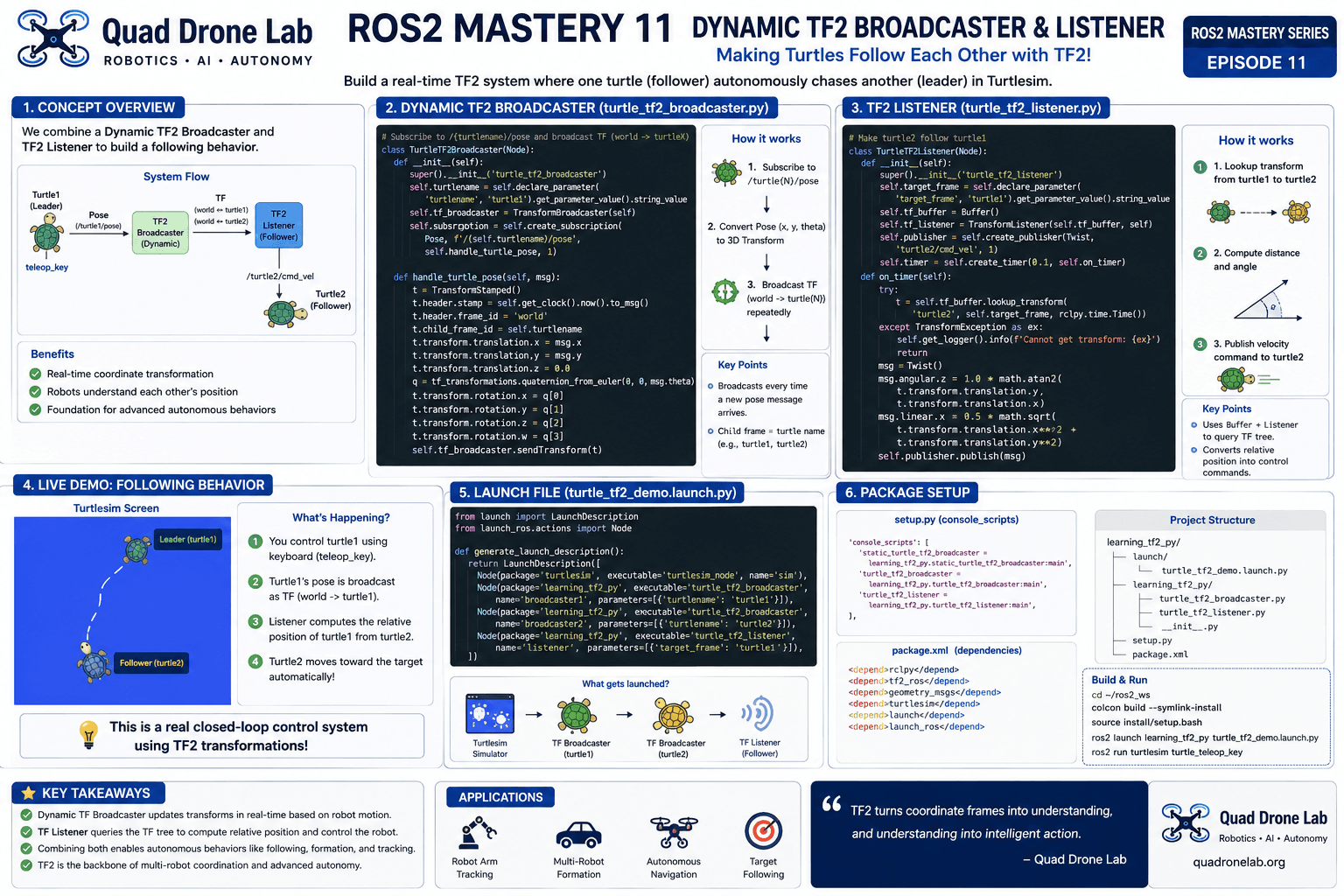
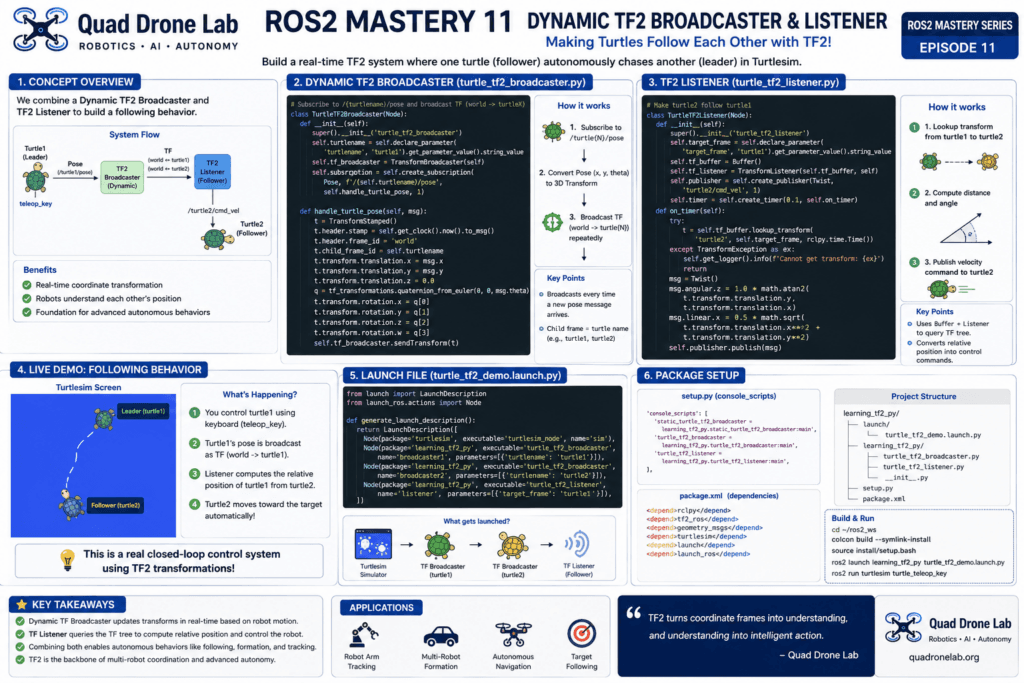
In this Part 11 tutorial, we will create a dynamic TF2 broadcaster that updates a turtle’s coordinate frame in real time as it moves. We will also implement a TF2 listener that tracks another turtle’s position and follows it dynamically. By combining these two components, you will build the foundation of an advanced autonomous navigation system in which a robot can determine the position of another robot and follow it autonomously.
Creating a Dynamic TF2 Broadcaster
While a static broadcaster only needs to publish a transform once at startup, a dynamic broadcaster must continuously calculate and publish transforms whenever the robot’s state—such as its position or orientation—changes.
In this tutorial, we will continue working with the learning_tf2_py package that we created in Part 10.
1. Create the Broadcaster Node
Navigate to the src/learning_tf2_py/learning_tf2_py directory, create a file named turtle_tf2_broadcaster.py, and open it in your preferred text editor.
#!/usr/bin/env python3
import rclpy
from rclpy.node import Node
from geometry_msgs.msg import TransformStamped
from turtlesim.msg import Pose
import tf_transformations

# Import the dynamic broadcaster library from tf2_ros.
from tf2_ros import TransformBroadcaster

class TurtleTF2Broadcaster(Node):
    def __init__(self):
        super().__init__('turtle_tf2_broadcaster')

        # Retrieve the turtle name as a parameter. (Default: 'turtle1')
        self.turtlename = self.declare_parameter(
            'turtlename', 'turtle1'
        ).get_parameter_value().string_value

        # 1. Create a dynamic transform broadcaster object.
        self.tf_broadcaster = TransformBroadcaster(self)

        # 2. Create a subscriber to receive the turtle's pose information.
        self.subscription = self.create_subscription(
            Pose,
            f'/{self.turtlename}/pose',
            self.handle_turtle_pose,
            1
        )

    # 3. Callback function executed whenever pose data is received.
    def handle_turtle_pose(self, msg):
        t = TransformStamped()

        # Configure the header: set the current timestamp and parent frame.
        t.header.stamp = self.get_clock().now().to_msg()
        t.header.frame_id = 'world'
        t.child_frame_id = self.turtlename

        # Copy the turtle's 2D pose (x, y) into the 3D translation data.
        t.transform.translation.x = msg.x
        t.transform.translation.y = msg.y
        t.transform.translation.z = 0.0

        # Convert the turtle's 1D rotation (theta) into a 3D quaternion.
        q = tf_transformations.quaternion_from_euler(0, 0, msg.theta)
        t.transform.rotation.x = q[0]
        t.transform.rotation.y = q[1]
        t.transform.rotation.z = q[2]
        t.transform.rotation.w = q[3]

        # 4. Broadcast the configured transform to the TF2 network.
        self.tf_broadcaster.sendTransform(t)

def main(args=None):
    rclpy.init(args=args)
    node = TurtleTF2Broadcaster()

    try:
        rclpy.spin(node)
    except KeyboardInterrupt:
        pass
    finally:
        node.destroy_node()
        rclpy.shutdown()

if __name__ == '__main__':
main()In-Depth Code Analysis for Researchers
1. TransformBroadcaster
Unlike the StaticTransformBroadcaster used in Part 10, TransformBroadcaster is designed to continuously update the TF tree in real time as the robot moves. It is the core class used for publishing dynamic transforms.
2. Dynamic Processing Logic
This node continuously subscribes to the /{turtlename}/pose topic, which provides the turtle’s current state. Whenever new pose data arrives, the handle_turtle_pose() callback function is triggered. The node then generates a new TransformStamped message with the latest timestamp obtained through get_clock().now(), and publishes the transform using the sendTransform() method.
3. Frame Relationship
The parent frame is set to world, while the child frame is assigned the turtle’s name (for example, turtle1). As a result, whenever the turtle moves, its coordinate frame is dynamically updated relative to the world origin, allowing the TF tree to continuously represent the turtle’s current position and orientation.
Creating a TF2 Listener Node
Now that the broadcaster is publishing real-time coordinate transformation data, let’s create a listener node that receives these transforms and calculates the relative position between two frames.
The goal of this node is simple: control the second turtle (turtle2) so that it continuously follows the first turtle (turtle1).
Create a file named turtle_tf2_listener.py in the same directory and add the following code.
#!/usr/bin/env python3
import math
import rclpy
from rclpy.node import Node
from geometry_msgs.msg import Twist
from tf2_ros import TransformException
from tf2_ros.buffer import Buffer
from tf2_ros.transform_listener import TransformListener

class TurtleTF2Listener(Node):
    def __init__(self):
        super().__init__('turtle_tf2_listener')

        # 1. Set the target frame (the object to follow).
        self.target_frame = self.declare_parameter(
            'target_frame', 'turtle1'
        ).get_parameter_value().string_value

        # 2. Create TF2 buffer and listener objects.
        self.tf_buffer = Buffer()
        self.tf_listener = TransformListener(self.tf_buffer, self)

        # 3. Create a publisher for sending control commands to the second turtle (turtle2).
        self.publisher = self.create_publisher(
            Twist,
            'turtle2/cmd_vel',
            1
        )

        # 4. Create a timer that queries transforms and sends control commands every 0.1 seconds.
        self.timer = self.create_timer(0.1, self.on_timer)

    def on_timer(self):
        # 5. Define the source and target frames.
        from_frame_rel = self.target_frame
        to_frame_rel = 'turtle2'

        try:
            # 6. Request the transform between the frames using the TF buffer.
            # (target_frame -> source_frame)
            t = self.tf_buffer.lookup_transform(
                to_frame_rel,
                from_frame_rel,
                rclpy.time.Time()
            )
        except TransformException as ex:
            self.get_logger().info(
                f'Could not retrieve transform: {ex}'
            )
            return

        # 7. Generate control commands based on the transform data (t)
        # by calculating the distance and heading to the target.
        msg = Twist()

        scale_rotation_rate = 1.0
        msg.angular.z = scale_rotation_rate * math.atan2(
            t.transform.translation.y,
            t.transform.translation.x
        )

        scale_forward_speed = 0.5
        msg.linear.x = scale_forward_speed * math.sqrt(
            t.transform.translation.x ** 2 +
            t.transform.translation.y ** 2
        )

        # Publish movement commands to the second turtle.
        self.publisher.publish(msg)

def main(args=None):
    rclpy.init(args=args)
    node = TurtleTF2Listener()

    try:
        rclpy.spin(node)
    except KeyboardInterrupt:
        pass
    finally:
        node.destroy_node()
        rclpy.shutdown()

if __name__ == '__main__':
main()[In-Depth Code Analysis for Researchers]
- Buffer and TransformListener: The TF2 system basically stores received transform data in a buffer for up to 10 seconds so that it can overcome network latency and also query past data. When a
TransformListeneris created, it automatically monitors the TF communication network of the system in the background and starts filling the buffer. - Role of
lookup_transform: This function is the core of a TF2 listener! Whenlookup_transform(target frame, source frame, time)is called, it perfectly calculates and returns the 3D linear distance and rotational difference between the two frames within the TF tree structure. Here, usingrclpy.time.Time()as the time value means “give me the most recent transform data available in the buffer.” - Exception Handling (
try-except): If the robot has just been turned on or communication latency occurs, the tree may not be fully constructed and errors can occur. Therefore, exception handling must be implemented to prevent the robot software from crashing.
Creating a Launch File and Configuring the Package
We have now completed both the broadcaster and listener nodes. Next, instead of opening multiple terminal windows, we will create a launch file that starts the Turtlesim simulator, the turtle1 broadcaster, the turtle2 broadcaster, and the listener node that connects the two robots—all with a single command.
1. Create the Launch File
Inside the src/learning_tf2_py/launch directory, create a file named turtle_tf2_demo.launch.py and write the following code.
from launch import LaunchDescription
from launch_ros.actions import Node

def generate_launch_description():
    return LaunchDescription([
        # Launch the turtle simulator
        Node(
            package='turtlesim',
            executable='turtlesim_node',
            name='sim'
        ),

        # Launch the dynamic TF broadcaster for the first turtle (turtle1)
        Node(
            package='learning_tf2_py',
            executable='turtle_tf2_broadcaster',
            name='broadcaster1',
            parameters=[{'turtlename': 'turtle1'}]
        ),

        # Launch the dynamic TF broadcaster for the second turtle (turtle2)
        Node(
            package='learning_tf2_py',
            executable='turtle_tf2_broadcaster',
            name='broadcaster2',
            parameters=[{'turtlename': 'turtle2'}]
        ),

        # Launch the listener node (configured so that turtle2 follows turtle1)
        Node(
            package='learning_tf2_py',
            executable='turtle_tf2_listener',
            name='listener',
            parameters=[{'target_frame': 'turtle1'}]
        ),
])2. Add Entry Points and Dependencies
ROS2 must be able to locate the newly created nodes and launch file, so we need to update the configuration files accordingly.
- Add the entry points for the two Python nodes we created to the
console_scriptsarray in thesetup.pyfile.
 'console_scripts': [
        'static_turtle_tf2_broadcaster = learning_tf2_py.static_turtle_tf2_broadcaster:main',
        'turtle_tf2_broadcaster = learning_tf2_py.turtle_tf2_broadcaster:main',
        'turtle_tf2_listener = learning_tf2_py.turtle_tf2_listener:main',
],In addition, to ensure that the launch file is installed correctly, you must include the launch directory configuration in the data_files section of the setup.py file.
- Add the dependencies required for the Launch system to the
package.xmlfile.
  <depend>launch</depend><br>
<depend>launch_ros</depend>Building the Package and Running Autonomous Following
All programming and configuration steps are now complete! Move to the root directory of your workspace and build the package.
# Check and install any missing dependency packages
cd ~/ros2_ws
rosdep install -i --from-path src --rosdistro jazzy -y

# Build the package
colcon build --symlink-installIf the build completes successfully, the next step is to source the development environment and finally run the application.
Open the first terminal and execute the launch file.
source install/local_setup.bash
ros2 launch learning_tf2_py turtle_tf2_demo.launch.py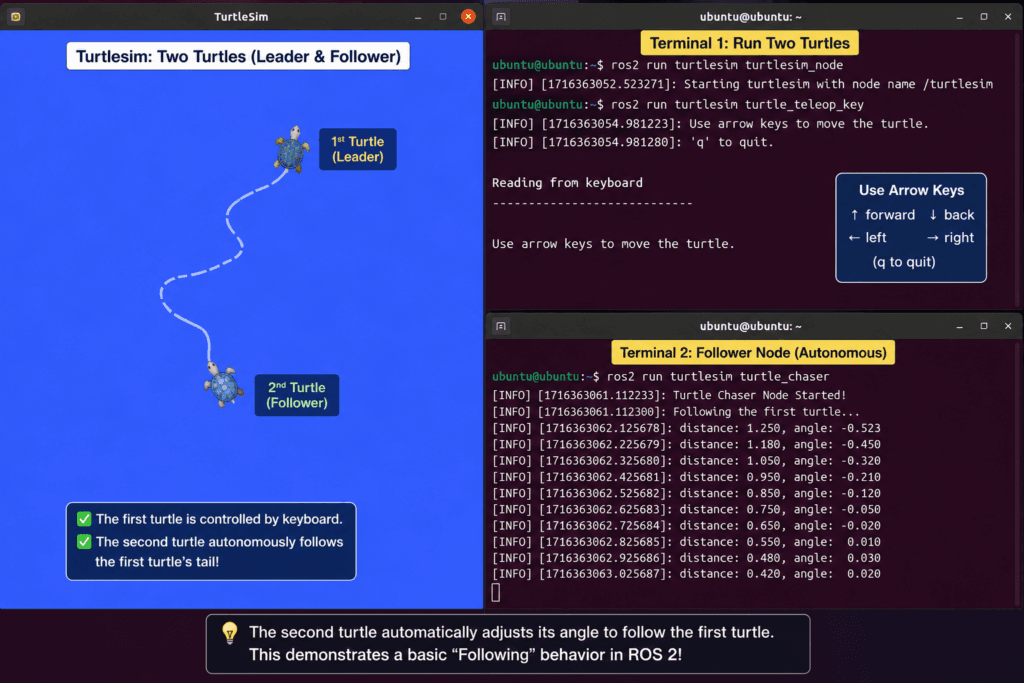
Once the simulator starts, two turtles will appear on the screen. Now open a second terminal and run the teleoperation node that allows the user to control the first turtle manually.
ros2 run turtlesim turtle_teleop_keyAn amazing result awaits!
Use the arrow keys on your keyboard to drive the turtle in the center (turtle1). As you control the first turtle, you’ll see the second turtle (turtle2) continuously calculate the distance and angle to its target in real time, smoothly tracing a path as it follows behind.
This is more than simply responding to commands. The listener is actively querying the TF2 tree using lookup_transform, calculating the positional error between the two frames on its own, and issuing control commands to the motors. In other words, a complete closed-loop control system is now in operation.
Conclusion
In this ROS2 Mastery Part 11, we implemented both a dynamic TF2 broadcaster, which updates a robot’s state within the coordinate tree system in real time, and a TF2 listener, which analyzes this tree to calculate the relative position between robots and autonomously generate control commands.
The code you wrote today is based on a powerful and fundamental principle that is widely used in robotics. Whether a robotic arm’s gripper is calculating a trajectory to grasp a target object, or multiple autonomous robots are performing coordinated swarm navigation in formation, the same core concepts are at work behind the scenes.
In ROS2 Mastery Part 12, we will explore how to add additional frames to this powerful TF2 tree, such as a fixed virtual offset frame (for example, a carrot frame suspended in front of a turtle) or dynamic frames whose positions change over time. By doing so, we will learn how to manipulate a robot’s target points freely and effectively.

Author: Aiden, Marketing Team at QUAD Drone Research Lab
Date: June 13, 2026
![[ROS2 Mastery Part 9] Static Frame and Moving Robot TF2 Broadcasting Practice Guide](https://quad-drone-lab.co.kr/wp-content/uploads/2026/06/0605_인포그래픽-768x429.jpg)
![[하이브리드 항법 시스템: 제2편] PX4 자율 항법의 원리와 Gazebo SITL 시뮬레이터 세팅](https://quad-drone-lab.co.kr/wp-content/uploads/2026/04/PX4EKF2-Architecture-768x429.jpg)
![[교육 후기] 3일간의 뜨거웠던 열정! 대전권 대학 ‘드론제어 심화과정 (PX4 & Isaac ROS V-SLAM 마스터 과정)’ 후기](https://quad-drone-lab.co.kr/wp-content/uploads/2026/08/KakaoTalk_20260826_192853638_13-766x354.jpg)
![[ROS2 Mastery 5편] ROS2 Topic 프로그래밍 (2) – Subscriber로 위치 정보 수신하기](https://quad-drone-lab.co.kr/wp-content/uploads/2026/05/0516_인포그래피-768x429.jpg)
![[Workshop Recap] 3 Days of Pure Passion! Advanced Drone Control & Isaac ROS V-SLAM Training Recap](https://quad-drone-lab.co.kr/wp-content/uploads/2026/08/KakaoTalk_20260826_192853638_13-1-766x354.jpg)